Why Do My Xbox Controllers Keep Disconnecting? What to Check
Why do my Xbox controllers keep disconnecting? Check battery power, wireless conditions and USB connections, then separate Windows and browser symptoms.
On this page
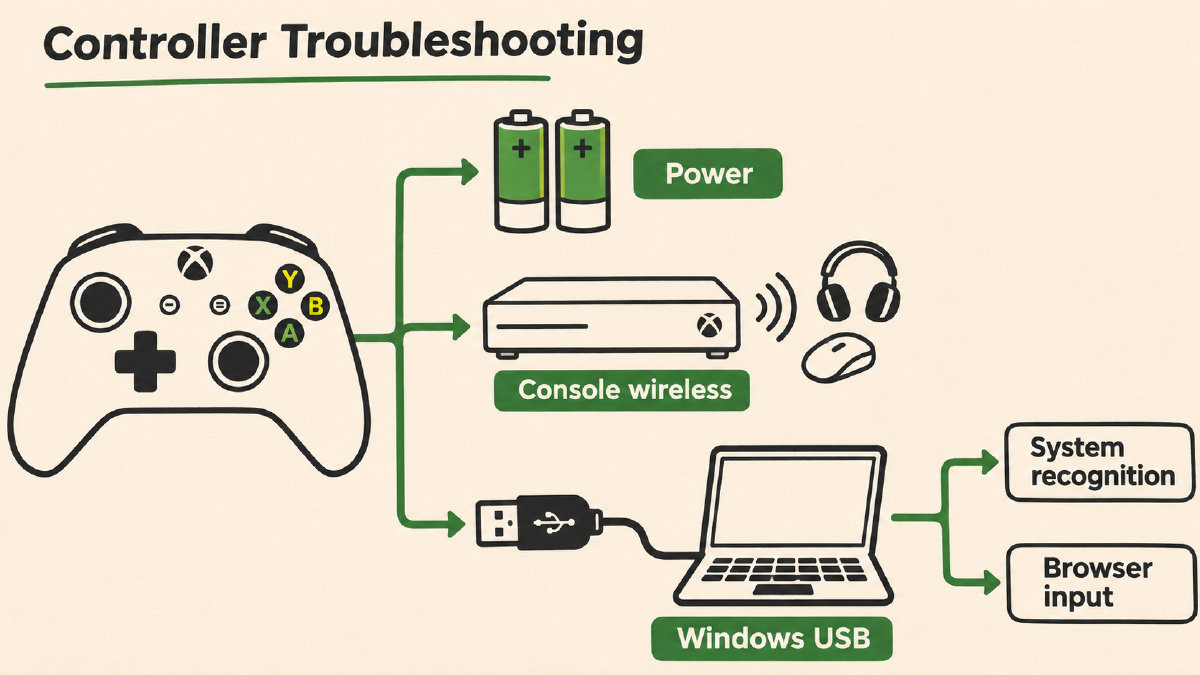
A wireless Xbox controller keeps dropping out. A new USB-connected controller is also doing the same thing. What should you do? If it’s your first time experiencing this, here are some things you can try.
If there was an improvement after you’ve charged a pack or replaced the batteries, use that as evidence to proceed with another check. Otherwise, treat the symptom without assuming a cause. The key point here is that battery-related dropouts may not be the only culprit.
Try moving the controller closer to the console, and try repositioning other nearby wireless devices. (That includes your console.) These two conditions weaken a wireless signal but don’t prove interference, which would mean something else has happened in addition. There isn’t a universally defined distance limit for the wireless range of your controller either.
You might see a problem with your controller via the Windows system if a wired connection stops responding. Try a data-capable cable plugged into a direct port and checking whether Windows recognizes the controller. You can also check whether it appears in another trusted controller application.
Try checking what Windows recognizes when the problem happens and then open https://gamepad-tester.app/ directly in a secure HTTPS window. Keep the test tab active and press a face button to check for live inputs, which could help locate where it stops working. Some browsers need that button press before exposing controller input, and browser or device restrictions can still prevent detection. Not all games support controllers, so a successful browser result doesn’t necessarily guarantee success with every game.
When trying a fresh pair of batteries, always check that they’re properly seated. Also, avoid using the controller while charging.
To compare how many controllers are affected by a dropout, keep track of what each does on its own, and compare that to others. If you see a pattern, share those comparisons across affected controllers.
Here’s how these checks work individually:
Battery
I’ve seen a few people report that their Turtle Beach Xbox One controllers keep disconnecting. Turtle Beach recommends replacing the AA batteries with fresh ones. (Or charging a rechargeable battery pack before comparing it with another one.) While we don’t know for sure whether the controller dropped out because of the batteries, if you notice an improvement after switching batteries, you’ll have evidence to move forward with other checks.
Distance & Obstacles
Turtle Beach says that placing the controller closer to your Xbox and adjusting surrounding wireless devices may help prevent disconnections. But there aren’t any hard-and-fast rules regarding how far away your controller must be, nor is interference an established condition. So you can check both distances and obstacles separately from each other.
USB Data Path
The Xbox One controller uses proprietary 2.4 GHz wireless connectivity to communicate with the console. A wired USB connection needs a working data path. When I asked someone who had problems connecting an Xbox controller through a wired USB connection, I found that it wasn’t connected to the console through USB. Instead, he connected it to a Windows 10 laptop, using the USB port for charging. That’s fine, but charging alone doesn’t guarantee that data will flow over the connection, too.
Windows Recognition
If the problem occurs on a specific browser page, you’ll want to confirm that your controller works on Windows itself. For a Bluetooth connection on Windows 11, open the Settings menu, then select Bluetooth & devices > Bluetooth and check the Xbox Wireless Controller entry. For USB, use a data-capable cable and a direct port, then check whether Windows or another trusted controller application recognizes it. If it isn’t recognized, troubleshoot that connection first. If it is, then you can proceed to test the browser directly.
Browser Input
Once your controller works within Windows, open https://gamepad-tester.app/ directly in a secure HTTPS window. Keep the test tab active, press a face button, and check whether the page displays live inputs from your Xbox Wireless Controller. If not, you can troubleshoot the problem more fully. If it does work, though, you may need to test against multiple browsers, as some browsers require a user action to begin recognizing your controller. Some games also provide their own ways of supporting Xbox controllers. If none of them do, you may need to install specific drivers or programs (like Steam) to ensure compatibility. Just because you were able to successfully operate a browser on Windows, however, doesn’t mean that every program you use will recognize your controller, either.
Controller Consistency
If your controller starts working again, make a note of which relevant tests it passed. If several controllers fail the same tests, that may indicate that the issue isn’t limited to a single device. On the other hand, matching results alone aren’t enough to diagnose a particular issue. It could be coincidence or simply that the problem exists between a specific device and a host, such as a router, rather than being a universal issue.
Sources
Related controller guides
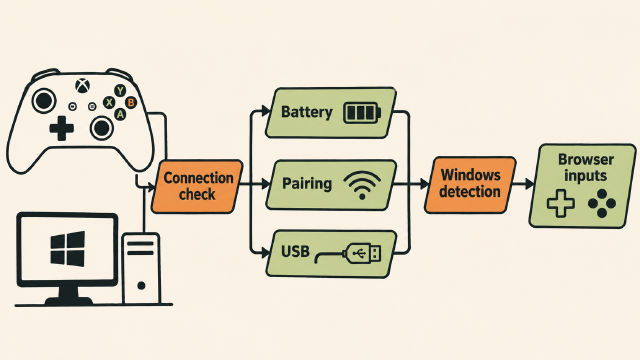
Why Is My Xbox Controller Blinking? PC Connection Checks
Why is my Xbox controller blinking on PC? Check pairing context, battery power and USB connections, then confirm Windows detection before browser inputs.
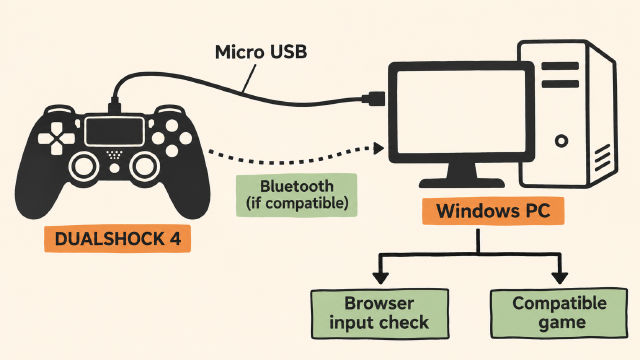
How to Connect PS4 Controller to PC on Windows
Learn how to connect PS4 controller to PC on Windows with Sony's USB guidance, conditional Bluetooth pairing steps and a browser input check.
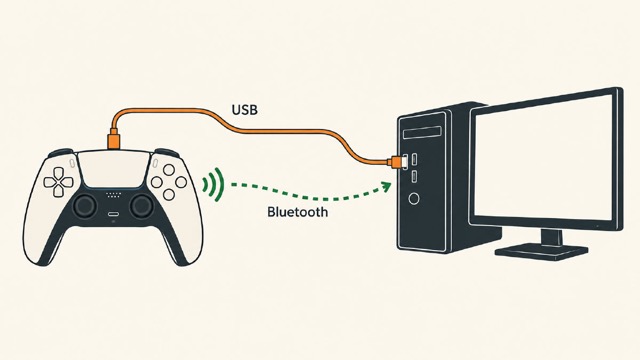
How to Connect PS5 Controller to PC on Windows: USB or Bluetooth
Learn how to connect PS5 controller to PC on Windows using USB or Bluetooth, check browser inputs, and understand game-dependent feature limits.