How to Connect PS5 Controller to PC on Windows: USB or Bluetooth
Learn how to connect PS5 controller to PC on Windows using USB or Bluetooth, check browser inputs, and understand game-dependent feature limits.
On this page
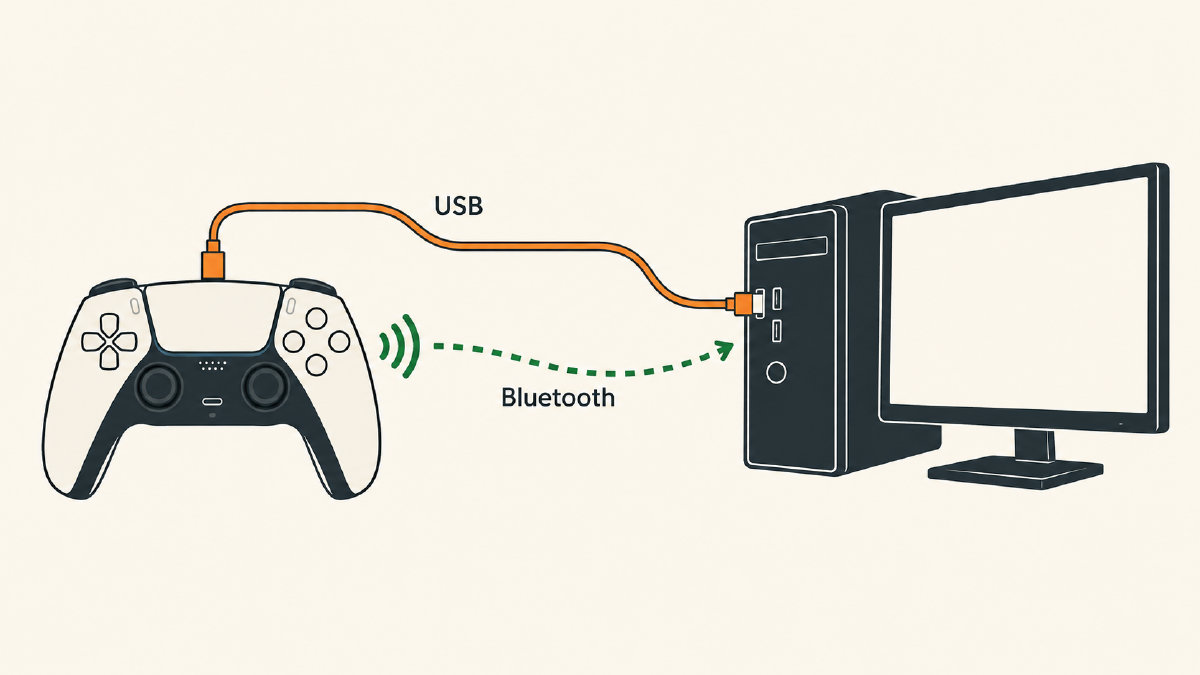
A PlayStation 5 DualSense controller connects directly to a PC. While it's possible to connect a controller over Bluetooth, this option requires an extra step to pair the controller. The connection method also affects the features that can be used in games.
This article discusses how to connect the PS5 controller to a Windows PC through either USB cable or Bluetooth. We’ll first describe the steps to complete the connection using a wired setup, followed by instructions for wireless. Finally, we’ll cover what to do after connecting your DualSense controller to your PC, including how to use the controller with Steam games.
We’ve tested and verified these procedures using Windows 10 and Windows 11 as of March 2023.
Before beginning
Connecting a PS5 controller to a PC is simple and straightforward, but you need to make sure your PC meets certain hardware requirements before doing so. This includes:
Windows operating system (we tested with Windows 10 and 11)
USB port for charging or connecting the controller directly
Bluetooth capability, via built-in hardware or an adapter
An internet connection
The standard PS5 controller can be used with compatible PC games, including games that support generic controllers, or with PS5 and PS4 games streamed through PS Remote Play.
To begin, plug the USB-C end of a cable into the controller, then plug the other end into a compatible USB-A or USB-C port on your PC.
Connecting via USB
While most modern PCs feature USB-C ports, not all are supported. Use a USB cable that supports data, with a USB-C connector for the controller and a USB-A or USB-C connector to match your PC’s port.
If your computer doesn’t support USB-C ports, you’ll have to purchase a separate USB-C to USB-A cable, which costs around $10. You’ll also want to download and install the PlayStation software from Sony’s website.
Pairing the controller wirelessly
Pairing your PS5 controller with your PC over Bluetooth isn’t difficult. First, you need to ensure the controller has been disconnected from the PS5 and is turned off. Disconnect any USB cable from the controller before pairing.
Press and hold the PS button until the player indicator turns off.
Hold down both the Create button and the PS button at the same time. Keep holding both until the light bar on the controller blinks.
Once this is completed, enable Bluetooth on your PC and choose the controller when asked. The controller should be paired automatically. On Windows 11, enable Bluetooth in Settings > Bluetooth & devices, then select the controller under New devices in the taskbar’s Bluetooth quick setting. On Windows 10, go to Settings > Devices > Bluetooth & other devices to add the controller.
Checking for connectivity
After you have connected the controller to your PC, press any buttons on the controller. If inputs are detected, then you know the connection was successful.
However, there is no assurance that games will support the controller. Game compatibility varies, even if your controller was successfully recognized by the PC itself. For more information, see our existing detection checklist.
Advanced options
Some advanced options may be available based on how the controller was connected and what the game supports. These include:
Adaptive triggers — Supported game required
PC haptic feedback — Supported game plus USB connection
PC headset jack — Wired connection required
Built-in microphone and speaker on Windows PC — Supported game required
For Steam games, check the “Controller Support” information found on the right side of the Steam game store page. This information lists whether the game supports the PS5 DualSense controller. It will either say “Full Controller Support” or “Partial Controller Support.” Note that browser input activity does not establish game compatibility.
See how we test controllers
This testing is part of our ongoing coverage of PC gaming controllers. In our controller review methodology, we assess the controls, ergonomics, and value of each device.