How to Connect PS4 Controller to PC on Windows
Learn how to connect PS4 controller to PC on Windows with Sony's USB guidance, conditional Bluetooth pairing steps and a browser input check.
On this page
Connect a PlayStation 4 (PS4) controller to your Windows computer using a USB cable, and Windows will immediately recognize it. But the PlayStation controller also has Bluetooth wireless capability, though the steps required to wirelessly pair it vary by version of Windows.
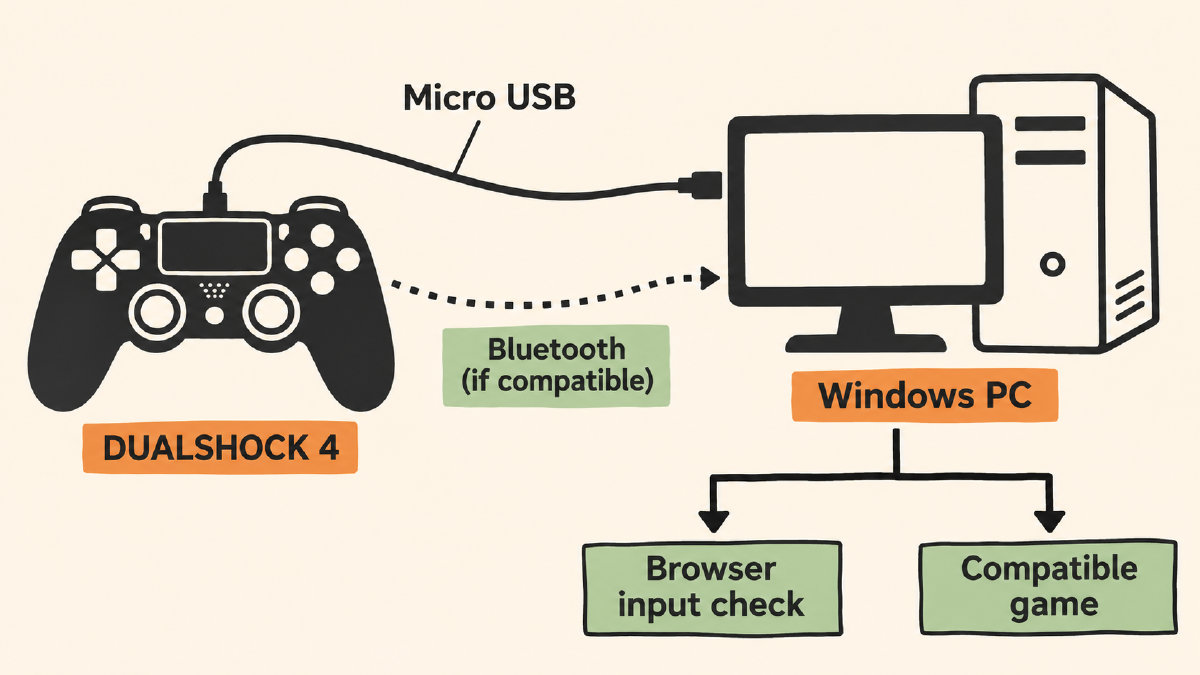
Sony has made the process as straightforward as possible for those who want to connect a wired DUALSHOCK 4 controller to their PC: just plug in a compatible micro USB cable between the controller and PC, and Windows will detect it. The same goes for connecting the controller via Sony’s proprietary DUALSHOCK®4 USB wireless adaptor. If you’d rather use Bluetooth instead, there are a few conditional requirements that you’ll need to satisfy before attempting to do so.
The instructions below walk through how to connect a PS4 controller to your PC, both wirelessly and with a cable. Note that while Sony lists macOS Catalina and newer versions of tvOS, iOS, Android, and iPadOS alongside its list of compatible operating systems, it omits Windows entirely.
Wired connection
To connect your PS4 controller to your Windows computer using a wired connection, you have a couple options:
Plug a compatible micro USB cable directly into the controller and then into your Windows PC. You can either connect directly to your PC or to one of the USB ports on your PC’s hub.
Alternatively, you can purchase a dedicated Sony DUALSHOCK®4 USB wireless adaptor. Sony provides detailed guidance on this connection method as well.
Either way, the connection is established by simply plugging in the cable. However, you must check whether Windows recognizes your controller separately from any input visibility checks that you might be conducting.
Wireless pairing
A PlayStation controller uses Bluetooth to communicate with other devices, but the steps required to wirelessly pair it vary slightly based on your PC’s Bluetooth hardware configuration.
If your PC includes built-in Bluetooth support, then it will likely work with a PlayStation controller. Otherwise, you can purchase an inexpensive USB Bluetooth adapter that plugs into one of your PC’s free USB ports.
Before proceeding, ensure that the following conditions apply:
Your PC has available Bluetooth hardware.
Bluetooth is enabled within your PC’s settings.
Then proceed to the following section to pair the PS4 controller with your PC. The steps below combine Sony’s controller pairing instructions with Microsoft’s general Windows Bluetooth pairing procedure. This is a conditional attempt, since Sony separately documents Windows USB connection but doesn’t explicitly list Windows as supported for Bluetooth.
Enter pairing mode
With Bluetooth active on your PC, make sure the player indicator on your controller is off. If it’s on, hold the PlayStation button until it turns off.
Then disconnect any USB cable connected to the controller. While holding down the SHARE button, press and hold the PlayStation button until the controller’s light bar flashes. This indicates the controller is in pairing mode.
Once the controller is paired, the indicator light on the front of the controller should stay on.
Select the discoverable controller
Windows has a few different ways that it enables you to select which Bluetooth device you want to pair with your PC, depending on the version of Windows that you’re running.
Windows 11 users can select from three Bluetooth quick settings, which include Network, Sound, and Battery. Clicking on any of these icons will reveal a menu of options. From there, click on the Manage Bluetooth devices chevron on the Bluetooth quick setting, then select the controller under New devices. You may need to scroll through Your devices for New devices to appear.
For Windows 10 users, click Start, then Settings. Once open, navigate to Devices, and click on Bluetooth & other devices. Finally, click Add Bluetooth or Other Device > Bluetooth, then select the discoverable controller.
Follow any additional instructions specific to your PC manufacturer to complete the Bluetooth pairing procedure.
Limited discovery checks
You may find that the controller does not appear on your PC when searching for Bluetooth devices, even if you’ve entered pairing mode. There are two types of device discovery processes available: a broad search, and a more limited one that focuses specifically on devices like the PlayStation controller. It is important to know what exactly these searches entail.
If you’ve already checked your PC’s Bluetooth settings, and it shows that Bluetooth hardware is available and that it’s been enabled, then your PC has Bluetooth functionality available.
If your controller doesn’t show up on your PC’s list of Bluetooth devices, check that you’ve disconnected any USB cable connected to the controller. In addition, if the controller’s pairing mode is indicated by a flashing light bar, then the Bluetooth pairing isn’t guaranteed.
On a Windows 11 PC, you can search for Bluetooth devices by launching the Start menu and navigating to Settings. Then navigate to Bluetooth & devices, followed by Devices and then Device settings. Finally, open the Bluetooth devices discovery drop-down menu to choose the discovery scope. By default, Windows will only look for common Bluetooth devices. An Advanced option allows you to see all types of Bluetooth devices. Performing an advanced Bluetooth discovery may reveal additional device types than would otherwise be seen, but again, that doesn’t guarantee that the controller will be discovered and paired successfully.
Existing browser tester
The existing homepage controller tester shows whether your browser exposes the controller and reports input from it. Once you’ve connected your controller, open the homepage tester and press a controller button to see whether your browser displays live input. It can’t independently check whether Windows recognizes the controller. These are very narrow interpretations of the responses visible within the live test.
If you don’t see any responses, then follow the controller detection checklist. That’s because a lack of response may indicate either that your operating system hasn’t recognized the controller, or that your browser didn’t recognize the controller.
The operating-system recognition first, then the browser detection second, which we believe is a bit misleading. For instance, many browsers report that the “device is detected,” without ever specifying which device.
Separate game compatibility
Finally, it’s important to separate the concept of compatibility between a given PlayStation controller and your PC. Simply because a connection is made between your PC and the controller, or even if your PC sees the controller in the browser, doesn’t necessarily mean that a particular game will work with the controller. Sony has guidance around this: games and applications that support DUALSHOCK 4, including some downloadable games, are compatible with the PS4 controllers.
While all of the functions are available on Sony Xperia smartphones and tablets, they’re not universally true for all devices within the guidance. On other devices, the touchpad isn’t supported, the color of the light bar cannot be changed, rumble, motion sensor and headphone-jack audio are all unsupported. These are limitations on the feature set that are dependent upon the device context, not universal Windows game behavior.
Sources
Related controller guides
How to Connect PS5 Controller to PC on Windows: USB or Bluetooth
Learn how to connect PS5 controller to PC on Windows using USB or Bluetooth, check browser inputs, and understand game-dependent feature limits.
How Do You Connect Xbox Controller to PC? Windows 11 Bluetooth
Connect a Bluetooth-compatible Xbox controller to a Windows 11 PC using Microsoft's pairing steps, then check browser-reported inputs.
How to Connect PS5 Controller to iPhone via Bluetooth
Learn how to connect PS5 controller to iPhone via Bluetooth, check iOS compatibility, and troubleshoot pairing or missing game inputs.