How to Connect PS5 Controller to iPhone via Bluetooth
Learn how to connect PS5 controller to iPhone via Bluetooth, check iOS compatibility, and troubleshoot pairing or missing game inputs.
On this page
If you’re wondering how to connect PS5 controller to iPhone, you can pair your PlayStation 5 controller with an iOS device. The requirements are the same as when pairing it to a PC or Mac: that you’re using a DualSense controller, which is standard on most new controllers sold by Sony. But the games and apps that support the controller might be different than those on other platforms.
You’ll also need to have iOS 14.5 or later on your iPhone and use Bluetooth to connect your controller to the device.
The game’s developers will decide what features they want their applications and games to offer — whether buttons or even lighting effects. That means there isn’t much control here for you.
Pairing a PS5 controller to your iPhone
You should always power down your controller first before attempting any of these steps, though some instructions may differ. You can do this by holding down the controller’s PS button.
Hold down the PS button until the PS5 controller turns off.
Plug out any USB cable connecting your controller to another device.
Hold down the Create button and the PS button simultaneously until the light bar starts flashing. If you’re unsure where the Create button is, try looking near the upper-left corner of the touch pad.
Create mode
When the light bar starts flashing, you’ll know the controller has entered “pairing mode” and is now discoverable by your iPhone.
Open up your iPhone’s Bluetooth settings and choose a nearby, discoverable device from the list. Select your controller from the list of nearby, discoverable devices.
Once the iPhone pairs with the controller, you’ll be notified of the pairing completion. The light bar on your controller blinks, then one of its player indicator lights goes on. You’ve successfully paired the two.
But if your controller has already been paired with your iPhone and does not connect, you can attempt to pair again. When you press and release the PS button, your controller reconnects.
Troubleshooting connection problems
If your iPhone isn’t connecting to your controller properly, try updating both your iPhone software and the software that runs your PlayStation controller.
Make sure your iPhone is updated with the latest version of its operating system. Check for updates in Settings > General > Software Update. And check that the latest version of the PlayStation controller’s firmware is available. If so, download and install the latest update from its maker.
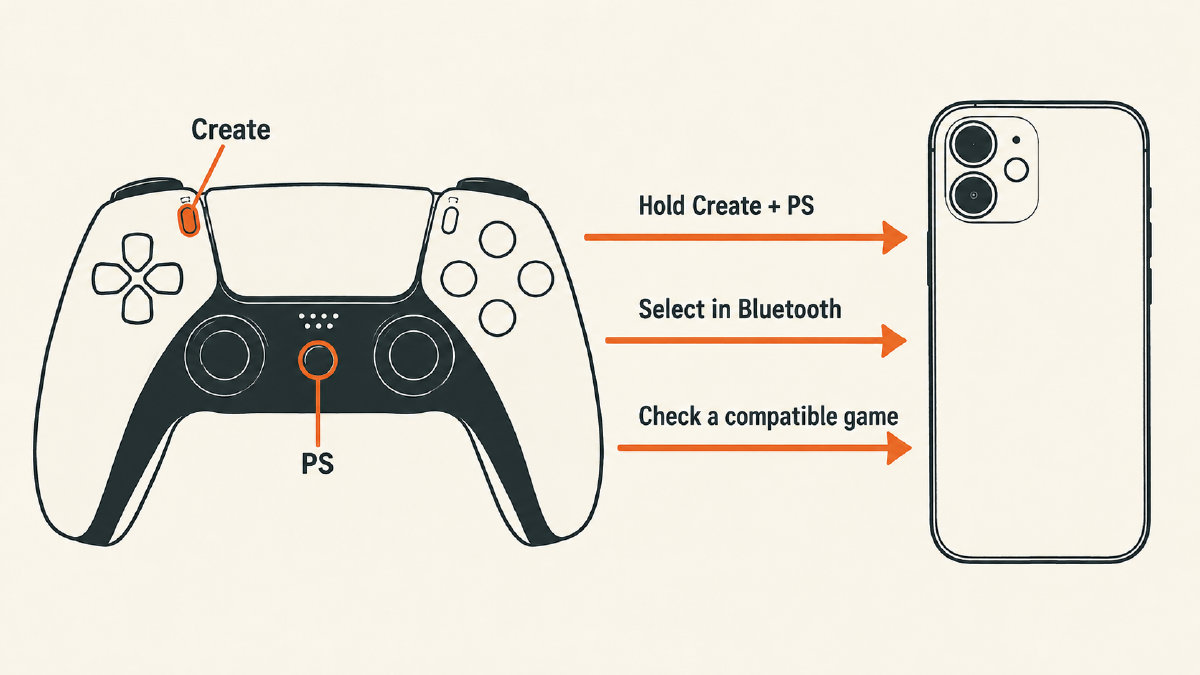
On your iPhone, open Bluetooth settings, and look for your controller under the Bluetooth entry (or adjacent to it). Tap the More Info button next to the controller entry. From this screen, tap Forget This Device, and pair and connect to the controller again. Repeat these steps until you are successful.
Persistent connection problems?
Try reducing the number of connected Bluetooth connections to your iPhone to see if that helps. You can do this by disconnecting or removing other Bluetooth accessories that may be taking over the phone’s resources.
Why a connected controller still produces no input
Just because the controller is connected to your iPhone doesn’t mean it will work with every application. For example, many iPhone apps don’t support a controller at all. Similarly, while a few games may support the PlayStation controller, others won’t.
The developer decides which buttons will function, how many axes and functions it supports, whether the controller’s analog sticks, triggers, and so on will respond correctly. The DualSense’s headset jack won’t work on your iPhone. Support for its LED lights will vary depending on the app. In short, it depends on what the app wants from the controller.
There is an optional step you can perform, however, that will help confirm whether your controller can talk to your iPhone at all: connect it to a web browser. There are a few tools that can test for this, but probably the best known is the controller tester found at https://gamepad-tester.app/.
Connect your PlayStation 5 controller to your iPhone. Then, tap any button, or turn the controller wheel or trigger. If the site displays visible session input, then your controller is functioning with your iPhone, and your game’s compatibility is still in question.
If you don’t see visible inputs in the browser, first check whether your iPhone detects the controller. If it doesn’t, work through the connection steps above. If it does, open the tester directly in a secure HTTPS window and press a face button; some browsers wait for that before showing controller input. Missing browser input alone doesn’t tell us whether pairing or game compatibility is the problem.
Sources
Related controller guides
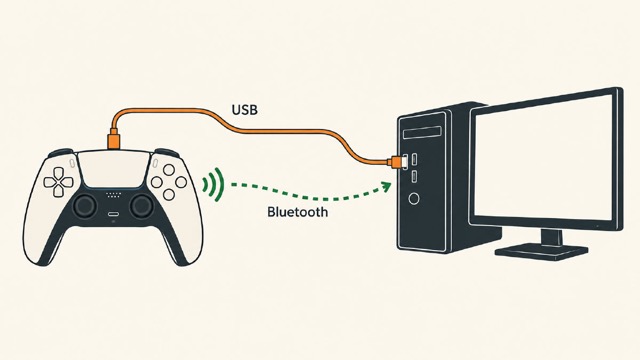
How to Connect PS5 Controller to PC on Windows: USB or Bluetooth
Learn how to connect PS5 controller to PC on Windows using USB or Bluetooth, check browser inputs, and understand game-dependent feature limits.
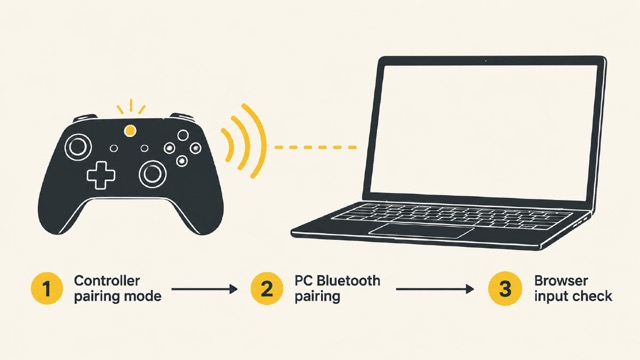
How Do You Connect Xbox Controller to PC? Windows 11 Bluetooth
Connect a Bluetooth-compatible Xbox controller to a Windows 11 PC using Microsoft's pairing steps, then check browser-reported inputs.