How Do You Connect Xbox Controller to PC? Windows 11 Bluetooth
Connect a Bluetooth-compatible Xbox controller to a Windows 11 PC using Microsoft's pairing steps, then check browser-reported inputs.
On this page
This walkthrough connects an Xbox Wireless Controller to a PC running Windows 11. It assumes you’re familiar with how the Xbox Wireless Controller works.
Before beginning, make sure you have a Bluetooth-enabled PC (Microsoft recommends Windows 10 Anniversary Update or later for Windows) and charged — replacing dead batteries, or recharging them, if needed.
Pairing the Xbox Wireless Controller
Turn on your Xbox Wireless Controller by pressing the Xbox button (the circle with an “X”) once.
Press and hold the Pair button (next to the Xbox button) for three seconds. The Xbox button lights up and starts blinking.
Find the Xbox Wireless Controller in Settings. From the Start menu, select the Settings icon > Bluetooth & devices > Bluetooth. Toggle on Bluetooth. Select Add device.
In Bluetooth settings, find and add the Xbox Wireless Controller. When you connect, the Xbox Wireless Controller will be connected to your PC.
If pairing fails, check that the controller is turned on and charged, that the PC’s Bluetooth switch is turned on. An operating-system problem might prevent you from connecting via Bluetooth; so check that as well.
When the controller is successfully paired with your PC, you’ll know that you have a live connection. You still need to check whether the browser detects the input.
Check for live input using a browser
You can use Microsoft’s own site, https://input.xbox.com, to test the connection. However, there are two things that we need to check: first, whether Windows recognizes the connection. Second, whether the browser detects the input.
Windows has a very simple way of checking this: go back into Settings > Bluetooth & devices > Bluetooth and look at the Xbox Wireless Controller entry. If Windows recognizes it, but the browser doesn’t, open https://gamepad-tester.app/ directly in a secure HTTPS window and press a face button. Some browsers wait for a user action before exposing the controller. Check whether the page displays live inputs when you press a button.
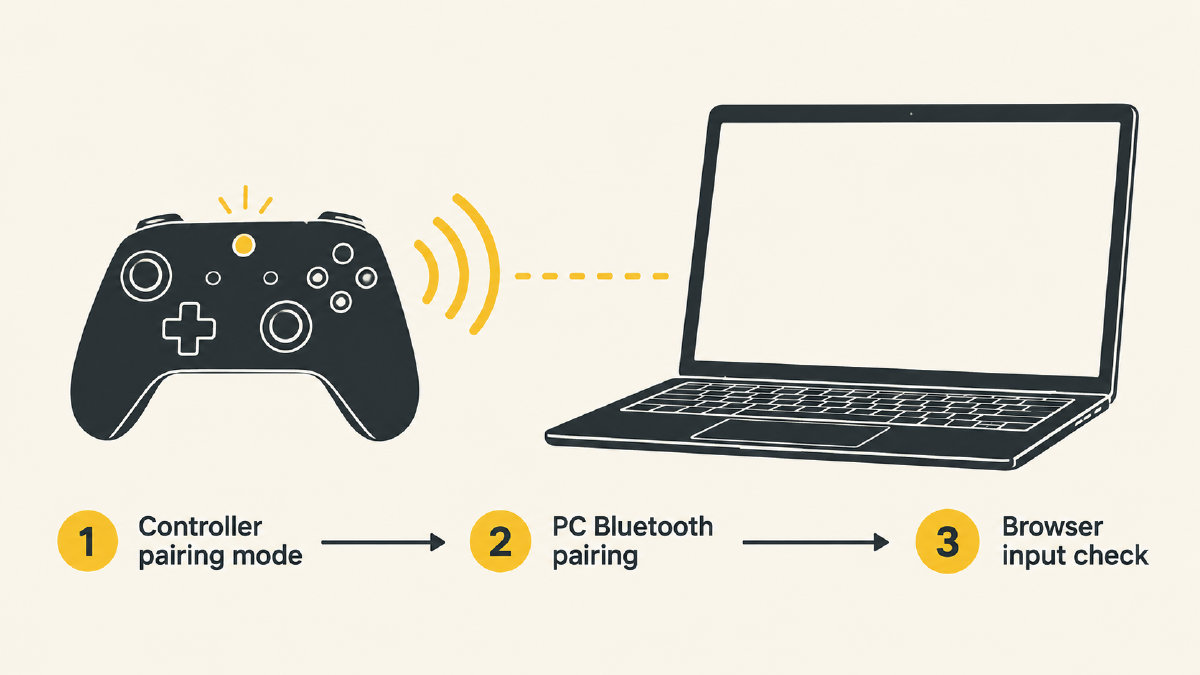
If Windows succeeds in connecting, then try the browser again. On the other hand, if Windows fails to connect, then the issue is elsewhere.
Games that support the Xbox Wireless Controller
There are many games, including Microsoft’s PC-based game titles, that support the Xbox Wireless Controller instead of keyboard and mouse. But not all games support the Xbox Wireless Controller, and the list varies.
Some games simply don’t work with an Xbox Wireless Controller. Others might require specific drivers. And some games only support the controller in conjunction with specific programs, such as Steam.
There isn’t one conclusion about which games support the Xbox Wireless Controller. You need to check individually.
Sources
Related controller guides
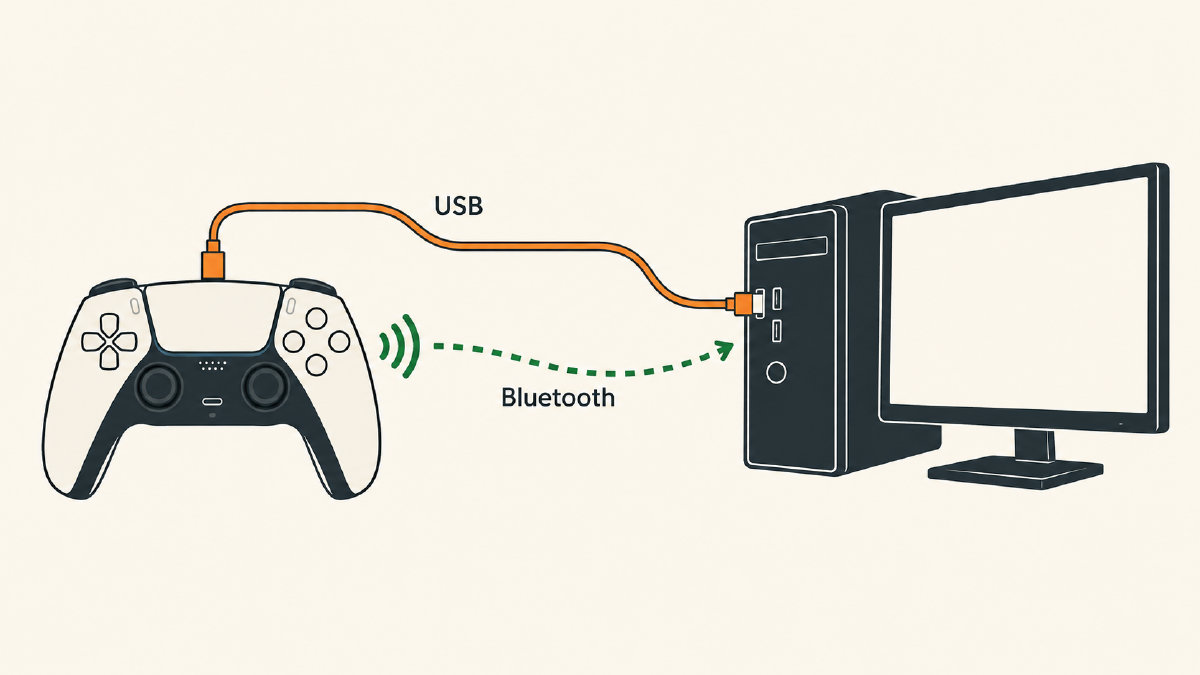
How to Connect PS5 Controller to PC on Windows: USB or Bluetooth
Learn how to connect PS5 controller to PC on Windows using USB or Bluetooth, check browser inputs, and understand game-dependent feature limits.