Can You Use PS4 Controller on PS5? Game Versions and Remote Play
You can use a PS4 controller on PS5 for supported PS4 games. Learn the PS5 game restriction, pairing steps, and the separate Remote Play option.
On this page
The answer is “yes,” with one key restriction: you must be playing a supported PS4 game on your PS5.
You can’t use the DUALSHOCK 4 controller directly on the PS5 to play native PS5 games. But if you have a supported PS4 game, it’s possible, whether or not the title also has a PS5 version.
In terms of instructions, I’m providing what I believe to be accurate guidance based upon official documentation, rather than conducting any tests using real devices.
To begin with, the PlayStation 5 console supports a wide range of PS4 games directly. Some titles will even play directly on the PS5; others will require downloading a separate PS4 version. For those who own both versions of a title, the process of selecting which to download and play is quite straightforward.
For this guide, we’ll assume that you’re connecting a PS4 controller directly to your PS5 via USB cable. We’ll also describe how to pair the controller wirelessly after an initial setup. If you already own a DualSense or DualSense Edge controller, then the following instructions apply instead.
A successful connection does not guarantee that your game will work properly. The DUALSHOCK 4 and DualSense controllers differ enough to ensure that games designed for the latter will not work properly with the former.
Connecting the DUALSHOCK 4 to your PS5
The simplest way to connect the DUALSHOCK 4 to your PS5 is to turn on the PS5 and plug the DUALSHOCK 4 into the PS5 with its included USB cable. If the DUALSHOCK 4 is off, press the PS button to activate it. At this point, the light bar should blink several times before illuminating to indicate that the PS5 recognizes it.
If you don’t have enough battery power to disconnect the controller, you’ll need to leave the DUALSHOCK 4 connected to the PS5 for wired use. Otherwise, simply unplug the DUALSHOCK 4 from the PS5 and use it wirelessly. Once the PS5 recognizes it, the PS5 will store the DUALSHOCK 4’s information for future use.
You’ll need to perform the pairing again when switching between consoles.
Unfortunately, pairing doesn’t override any game-version restrictions — that still has to be handled separately. When you select a title, choose “Download” if it isn’t installed yet. If you own both versions, select [ ... ] to choose the version you want to download or play.
When launching, the PS4 and PS5 versions appear as two distinct options. However, only the PS4 version of the game is compatible with the DUALSHOCK 4 controller.
Selecting the correct version
Let’s suppose that you own both versions of a game. In order to choose the correct version, navigate to the Games home, then the Game Library. Highlight a game you want to play, press X, and select [ ... ] at the bottom-left corner of the screen. From here, you can choose whether you want to download the game or just play it.
From the [ ... ] options, choose the PS4 version of the game you want to download or play. The PS4 version will display “PS4” beside the title, while the PS5 version displays the title only. If you haven’t already downloaded the PS4 version, select “Download.” Once it’s installed, select “Play.”
It’s also important to remember that not every game on the PS4 is playable directly on the PS5. Only those games that Sony classifies as “supported” are eligible for direct play, and you won’t be able to tell which are supported without doing a little digging.
Remote Play: A different route to gameplay
As stated earlier, many titles that are available on the PS4 will also be playable on the PS5. In fact, the overwhelming majority of the 4,000+ PS4 games are playable on PS5 consoles. But there are other options: namely, playing remotely on another device using Remote Play. As the name suggests, Remote Play uses your existing network to stream gameplay over to another compatible device, either a PC or a mobile device, where you can play the game using the controller. This includes compatible PS4 and PS5 games, so you can use the DUALSHOCK 4 to play compatible PS5 games through Remote Play on a supported receiving device. You still can’t use it directly on the PS5 to play PS5 games.
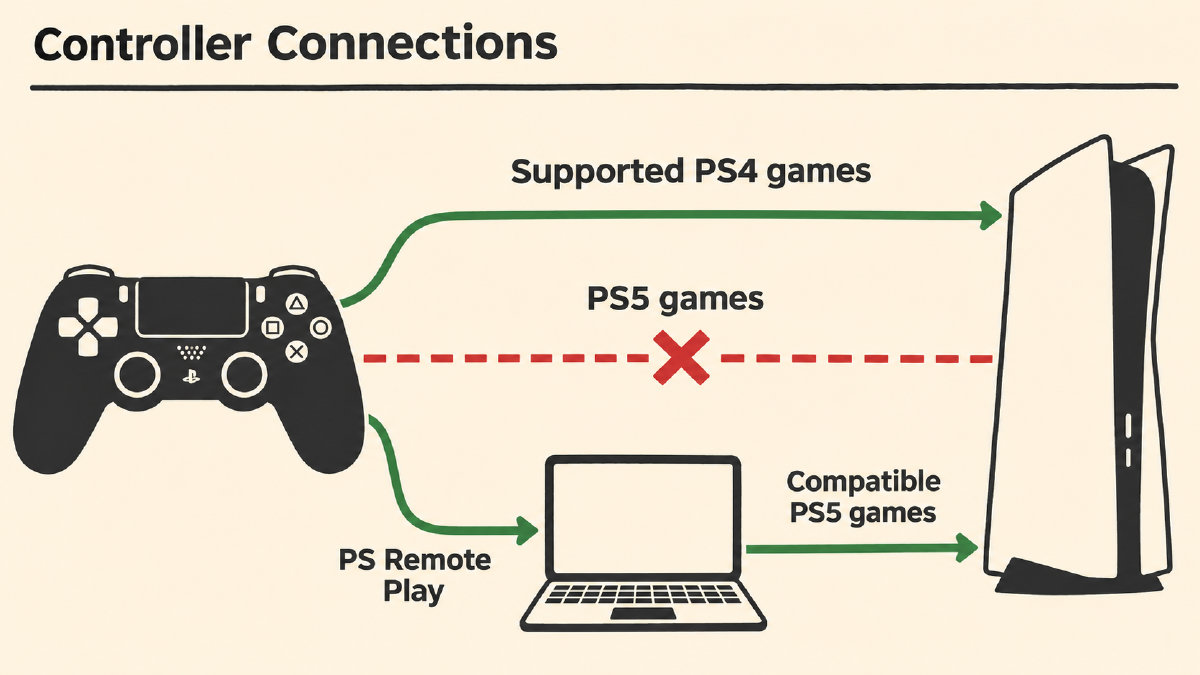
Connecting your PS4 controller to the receiving device depends on the type of receiving device that you use. On Windows PCs, you’ll need to connect the controller via USB for PS Remote Play. On Mac computers, however, you’ll be limited to Bluetooth connectivity only. Sony offers specific instructions for using your DUALSHOCK 4 controller with macOS 11 or later, which may include additional steps. On supported iPhone, iPad, and Android devices, you can pair the DUALSHOCK 4 through the device’s Bluetooth settings for Remote Play. Sony’s listed operating-system thresholds describe controller support; check your app store for the current PS Remote Play app requirements.
Setting up Remote Play
Using a remote device is slightly more involved than using a console. You’ll first need to make sure that you use the same PlayStation account as your PS5. Then, update the system software on your PS5 to the latest release. Navigate to Settings > System > Remote Play > Enable Remote Play. You’ll also have the ability to disable Remote Play for individual users.
Finally, make sure that the host PS5 console wakes up if needed. You’ll need to go to Settings > System > Power Saving > Features Available in Rest Mode and enable Stay Connected to the Internet, as well as Enable Turning on PS5 from Network. You don’t need to know the IP address of the PS5. With the console on or in rest mode, open the PS Remote Play app on your receiving device, sign in with the same account you use on your PS5, and select PS5. The app searches for your console and connects automatically.
Next, Sony recommends that you set up the rest of your internet connection. Sony recommends at least 5 Mbps upload bandwidth and download bandwidth. For best performance, it recommends 15 Mbps upload and download speed, but performance varies depending on the game and network connectivity. Bandwidth figures don’t guarantee an experience.
Remote Play exclusions and controller limitations
There are certain exclusions, too. Remote Play excludes titles that require PlayStation VR or PlayStation VR2 headsets. Similarly, it excludes games that require additional peripherals other than a DUALSHOCK 4, DualSense, or DualSense Edge controller, as well as games that must be streamed using PS Plus Premium subscriptions. Finally, note that the Android-related limitations remain, meaning that you may not have access to the Touch Pad, Motion Sensor, Light Bar, or Vibration functions on Android devices. On Android TV, DUALSHOCK 4 controller audio output is not supported by PS Remote Play.
If you have any issues with the browser inputs, try responding to them, since these inputs over the current device connection provide observations about the connection. Browser responses cannot establish that a PS5 game is supported, and neither can they confirm that streaming is being used. If the response isn’t accepted, then it’s back to checking the version of the game you selected and ensuring that the appropriate connection routes are used. It could also be a controller issue.
Sources
- Backward compatibility: PS4 games playable on PS5 consoles
- Controllers Support | PlayStation
- PS Remote Play | Download the PS Remote Play app and stream PS5 and PS4 games to your device | PlayStation (US)
- How to use PS Remote Play on mobile devices
- How to upgrade an eligible PS4 game to the digital PS5 version
Related controller guides
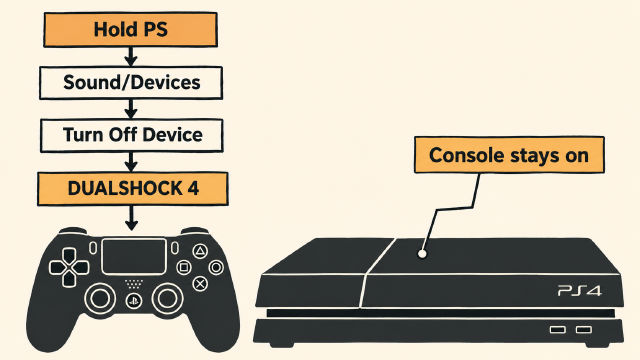
How to Turn Off PS4 Controller Without Turning Off Your Console
Learn how to turn off PS4 controller through Sound/Devices while leaving your console running, plus Sony’s PS-button guidance for other devices.
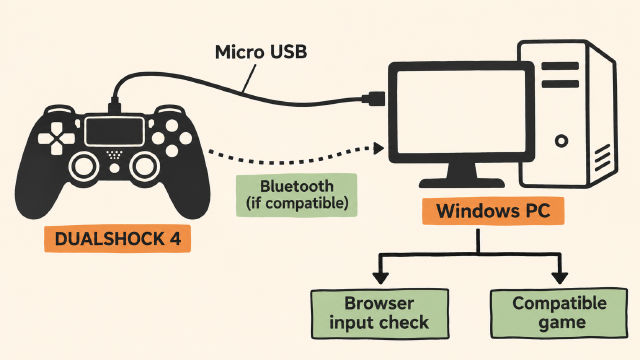
How to Connect PS4 Controller to PC on Windows
Learn how to connect PS4 controller to PC on Windows with Sony's USB guidance, conditional Bluetooth pairing steps and a browser input check.
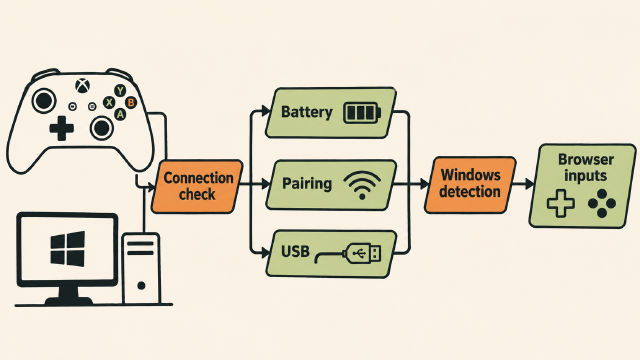
Why Is My Xbox Controller Blinking? PC Connection Checks
Why is my Xbox controller blinking on PC? Check pairing context, battery power and USB connections, then confirm Windows detection before browser inputs.