How to Turn Off PS4 Controller Without Turning Off Your Console
Learn how to turn off PS4 controller through Sound/Devices while leaving your console running, plus Sony’s PS-button guidance for other devices.
On this page
The PlayStation 4’s controller is designed to communicate with your console via Bluetooth, which means you can use your PS4 Wireless Controller as a standalone peripheral or wirelessly connected. But if you want to power off your DualShock 4 (DS4) without turning your PS4 console off, there are a few ways.
Sony doesn’t officially document all of the ways that you can turn off your DS4 controller, but they do offer some official instructions on how to perform this operation. However, some instructions are only available within the context of other procedures, such as preparing your controller for its first-time Bluetooth pairing.
Turn Off Your DS4 Using the Quick Menu
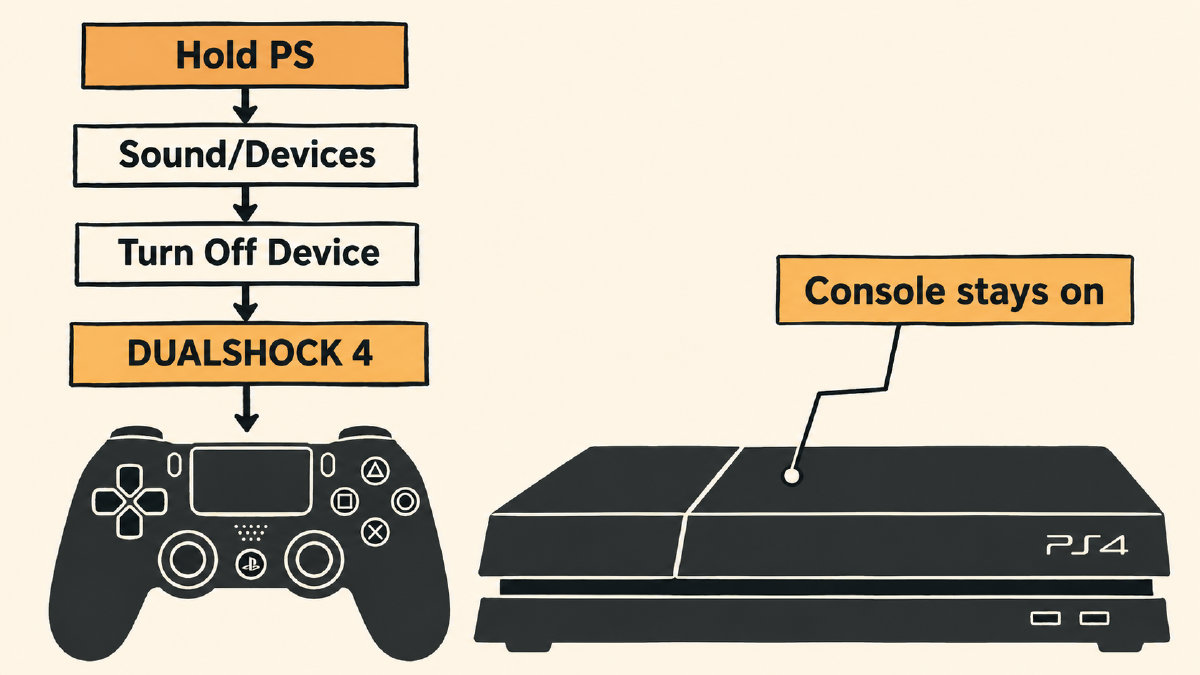
The instructions that Sony does document suggest that you can use a quick menu command to put your DS4 to sleep. That procedure requires that you press and hold the PS button until you see the Quick Menu. From there, navigate down to Sound/Devices > Turn Off Device > DUALSHOCK 4. The controller should then power off while leaving the console powered on. Select DUALSHOCK 4 to direct the shutdown command to your controller.
If you’re trying to power off your DS4 when it’s away from your PS4, then again, Sony offers their own instructions on how to pair up with a supported device, including PCs, Macs, Android, and iOS. While the instructions aren’t explicitly tied together by a “turn off” command, Sony documents them in the same location. Again, those instructions require you to either wait for the Player indicator to turn off before entering pairing mode or simply hold the PS button until the Player indicator turns off. You’ll need to ensure that the Player indicator is turned off before proceeding to pair the DS4.
USB Connections and Charging
Sony’s instructions for Bluetooth pairing preparation also include a note that says, “attached USB cable: disconnect during the following steps.” Those steps tell you to hold the PS button until the Player indicator turns off, but Sony doesn’t specify how long to hold it. They don’t establish a universal way to turn off your DS4 while it’s connected by USB. Sony also says to charge the controller by connecting it to your PS4 with the included USB cable, and that a full charge from empty takes about 2 hours. The one notable exception is that Sony documents the fact that you can charge the DS4 using a wired connection, too. According to Sony, charging the DS4 controller is possible both while your PS4 console is on, and even while the console is in rest mode — the equivalent of Sleep mode on Windows computers.
When it comes to troubleshooting your PS4’s controller, you may find yourself resetting it. Sony’s method is to turn off and unplug your PS4, disconnect the controller from the USB cable, and use an unfolded paper clip to hold the reset button inside the tiny hole on the back of the controller for at least five seconds. However, resetting your PS4’s controller isn’t necessarily the same thing as turning it off, and Sony’s instructions after performing a reset are to reconnect the controller to your PS4 with the official USB cable and press the PS button to pair it. In short, if you just want to shut off the PS4’s controller, then you’ll likely have more success with the standard methods that Sony provides.
Sources
Related controller guides
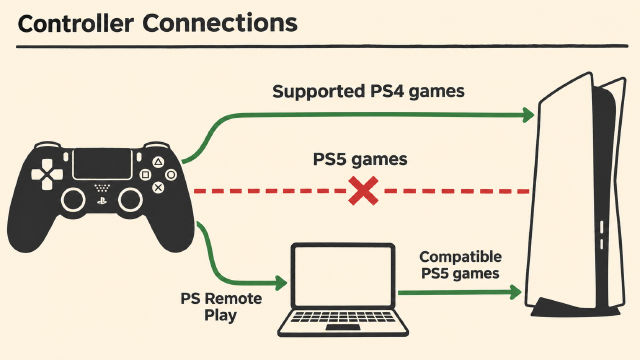
Can You Use PS4 Controller on PS5? Game Versions and Remote Play
You can use a PS4 controller on PS5 for supported PS4 games. Learn the PS5 game restriction, pairing steps, and the separate Remote Play option.
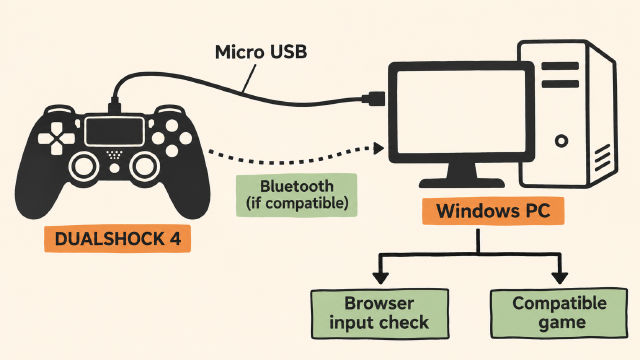
How to Connect PS4 Controller to PC on Windows
Learn how to connect PS4 controller to PC on Windows with Sony's USB guidance, conditional Bluetooth pairing steps and a browser input check.
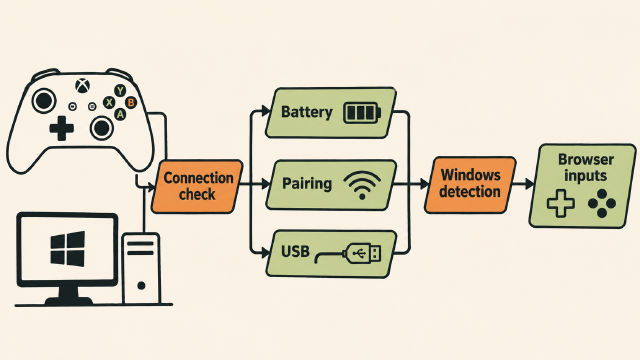
Why Is My Xbox Controller Blinking? PC Connection Checks
Why is my Xbox controller blinking on PC? Check pairing context, battery power and USB connections, then confirm Windows detection before browser inputs.