How to Connect PS4 Controller to Phone: iPhone and Android
Learn how to connect PS4 controller to phone via Bluetooth on iPhone or Android, check compatibility, and understand why games may not respond.
On this page
You might be wondering whether your PS4 controller is compatible with a phone. In theory, yes it should be. But you can’t assume that.
Phone and App Compatibility
First, there are basic compatibility baselines:
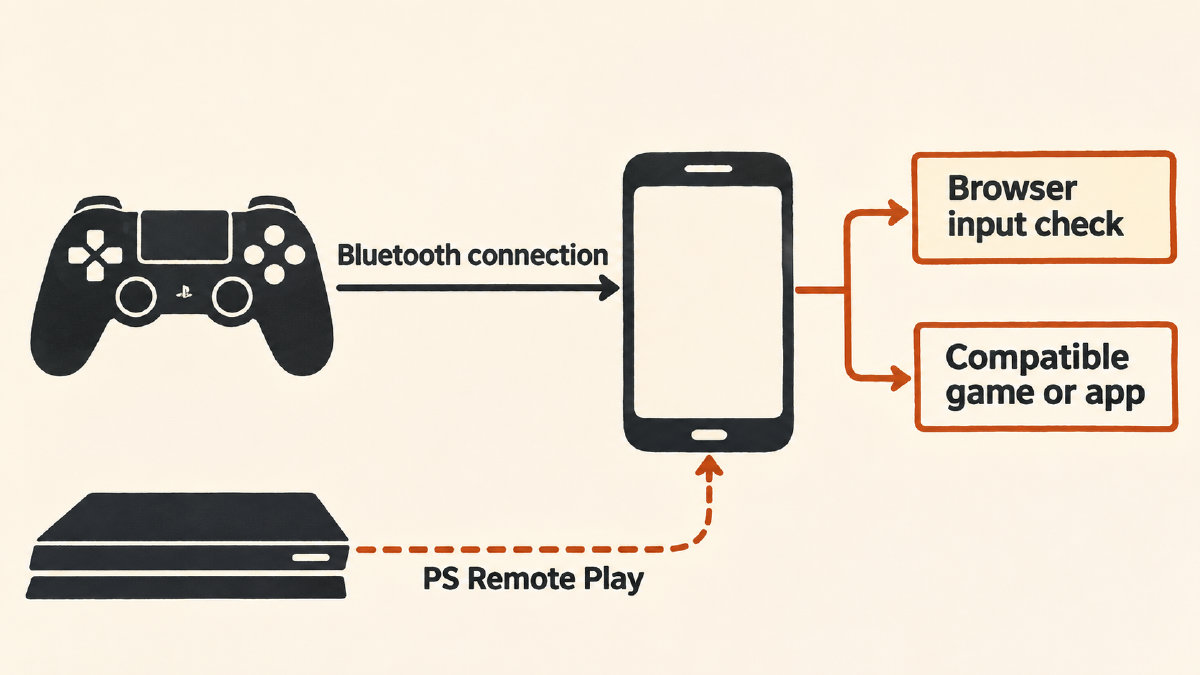
The PlayStation 4 controller (DUALSHOCK 4) uses Bluetooth to communicate with a phone. So you’ll need a Bluetooth-capable device. You will also need games and apps that support the DUALSHOCK 4, or alternatively, Remote Play, if you wish to use the DUALSHOCK 4 as part of streaming.
There’s no real-device testing that I’ve performed for this guide, and this article only covers manufacturer-documented procedures, not anything that may exist outside of them. If something works for you and others, feel free to share how!
Sony has confirmed that iOS 13 or later and Android 10 or later support connecting via Bluetooth. However, the actual ability to connect a DUALSHOCK 4 depends on the game and app itself, which we’ve covered separately.
Pairing Your PS4 Controller to an Android Device
Android devices use Bluetooth, so you’ll pair your DUALSHOCK 4 through that method.
Power down the controller. If the light bar is illuminated, press and hold the PS button until the light bar turns off.
Unplug the controller from any USB cable, then hold the SHARE and PS buttons simultaneously. Wait for the light bar to begin flashing.
Enable Bluetooth on the phone, then select the DUALSHOCK 4 from the list of available Bluetooth devices.
Pairing Your PS4 Controller to an iPhone
Apple does have documented procedures, including an extra PS-button press if the controller pairs but doesn’t connect to the phone.
Turn off the controller. If it is currently powered on, press and hold the PS button until it turns off.
Unplug the controller from any USB cable. Hold the PS button and the Share button together until the light bar begins flashing.
In your iPhone’s Bluetooth settings, choose the controller from the nearby discoverable devices list. Once paired, you can press and release the PS button again to connect.
Connecting Your PS4 Controller to an iPhone: Recovering a Connection
If your connection failed, there may be a recovery process involved, depending on your iPhone.
Begin by turning off the controller and unplugging it from any USB cables. Hold the PS button and the Share button simultaneously until the light bar flashes. At this point, you’ll either have to pair and connect the controller (again), or you won’t be able to do so.
However, if you’re already paired with the controller, just turn it on again. You won’t necessarily be connected to it, though — in which case, you’ll want to go into the Bluetooth settings of your phone, choose the controller (or the More Info button adjacent to it) and select “Forget This Device.”
Once forgotten, you’ll have to pair and connect the controller once again. The fewer Bluetooth devices connected to your Apple device, the more likely you’ll be able to connect to it without problems. Possible connection issues could be related to wireless interference. For example, some users have found that pairing a DUALSHOCK 4 to their iPhone could cause their AirPods to stop working. If they try to reconnect, the AirPods sometimes resume operation.
Live Input Check
To see what input the browser session receives, try our Gamepad Tester.
For now, the test requires that you’ve connected the controller. A simple button press should be enough to verify connectivity. If the tester shows no controller, our detection guide tells you to check whether your phone’s operating system detects it first. Then check browser detection. Keep in mind that this result is limited to the current browser session, however, and not intended to determine if the game itself supports the DUALSHOCK 4 controller.
Using PS Remote Play
A number of phone games make direct use of the controller. Alternatively, you could use the PS Remote Play application instead, which allows you to stream games from your PS4 or PS5 console. That’s separate from simply supporting a Bluetooth connection.
Note that you’ll need the PS Remote Play app, but a DUALSHOCK 4 isn’t required. You can also use another supported controller or your phone’s touchscreen controls. Games streamed from a PS4 or PS5 console require a PS4 or PS5 console, along with the latest system software, as well as a PlayStation account matching the console’s account.
Finally, Sony recommends that you use a high-speed internet connection. Otherwise, you may experience lag.
Both iOS and Android provide documentation for Remote Play; however, the current app system requirements state that the app must be installed using Google Play or the App Store. The Remote Play page includes information about supported operating systems, too: iOS 14 or later and Android 10 or later for using a DUALSHOCK 4 via Bluetooth. Sony also directs you to Google Play or the App Store to check the current Remote Play system requirements.
Why Successful Pairing Doesn’t Guarantee Support
Just because you successfully paired your controller doesn’t mean all functions will work, however. Sony has included an exception for Xperia smartphones. Compatible Xperia phones allow full functionality to be accessed through a DUALSHOCK 4. If you’re connecting to other devices over Bluetooth, you’ll find out that its touchpad isn’t supported. Rumble, motion sensor, headphone-jack audio, and changing the color of the light bar aren’t supported, either.
Apple has also provided some qualifications as well. It appears that certain buttons and features may vary between specific controllers and specific applications.
Return to Wireless PS4 Use
After connecting your controller to your phone, you can return to wireless play. Simply use a compatible USB cable to connect the controller to your PS4, press the PS button, and the cable can be removed afterwards. Your wireless PS4 gameplay is restored.
Sources
- How to use DUALSHOCK 4 wireless controllers with PC, Mac, Android, and iOS
- Connect a PlayStation wireless game controller to your Apple device - Apple Support
- Connect a wireless game controller to your Apple device - Apple Support
- PS Remote Play | Download the PS Remote Play app and stream PS5 and PS4 games to your device | PlayStation (US)
- How to use PS Remote Play on mobile devices
Related controller guides
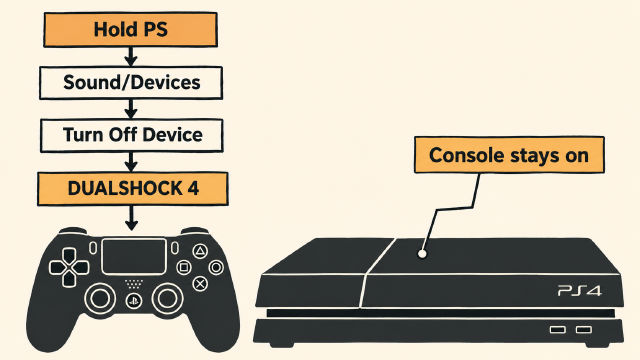
How to Turn Off PS4 Controller Without Turning Off Your Console
Learn how to turn off PS4 controller through Sound/Devices while leaving your console running, plus Sony’s PS-button guidance for other devices.
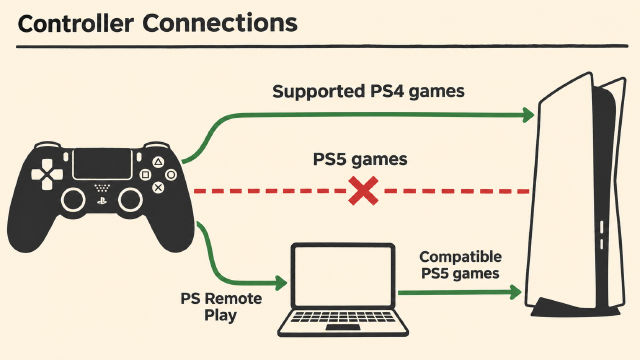
Can You Use PS4 Controller on PS5? Game Versions and Remote Play
You can use a PS4 controller on PS5 for supported PS4 games. Learn the PS5 game restriction, pairing steps, and the separate Remote Play option.
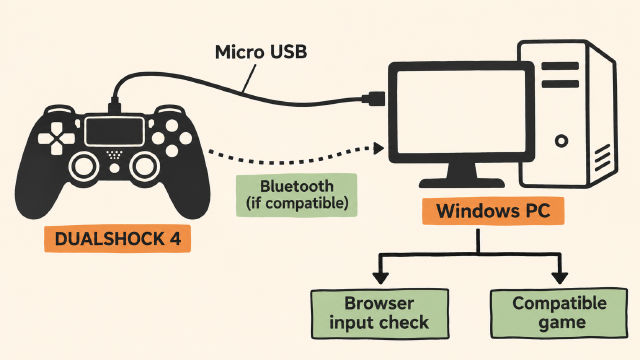
How to Connect PS4 Controller to PC on Windows
Learn how to connect PS4 controller to PC on Windows with Sony's USB guidance, conditional Bluetooth pairing steps and a browser input check.