How to Restart PS4 Controller and Reconnect It to Your PS4
Learn how to restart PS4 controller, use Sony’s rear reset-button procedure when needed, and reconnect your DUALSHOCK 4 to PS4 using USB.
On this page
You’re having trouble with your PlayStation 4 (PS4) DualShock 4 controller. Whether you’re trying to connect it or reconnect after using it on a different device, there are some basic troubleshooting steps that can help. Here’s how to restart PS4 controllers and reconnect yours.
Turning off and on
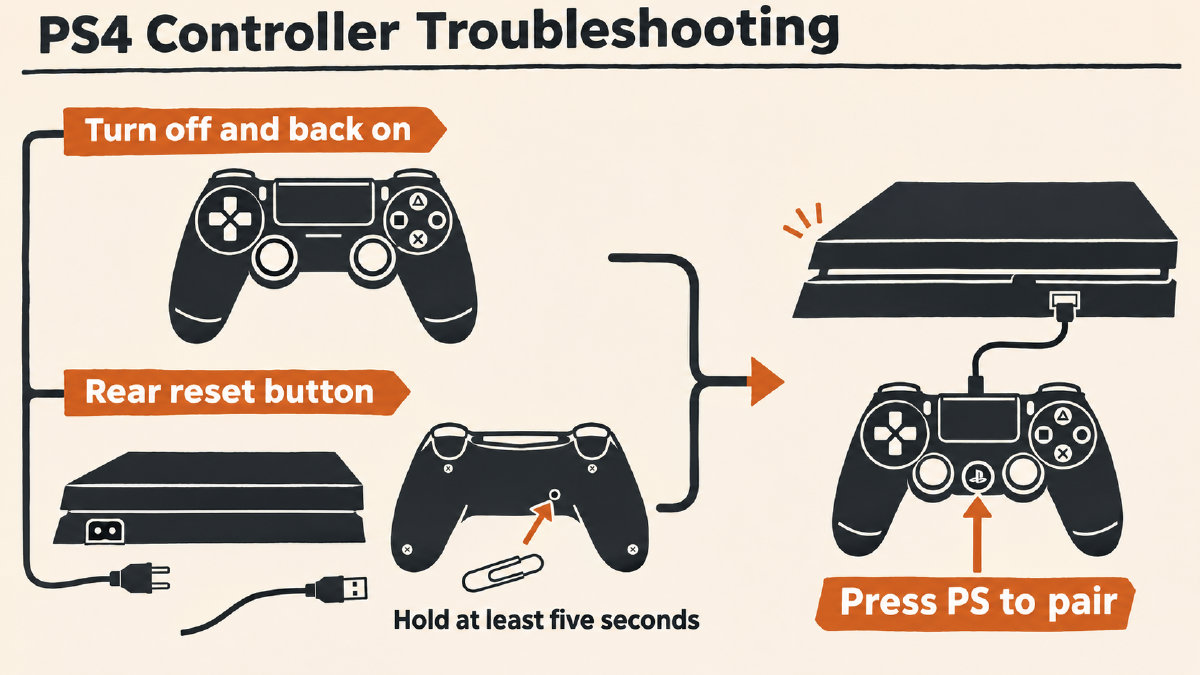
The best first step is simply turning the responsive DualShock 4 controller off, then back on. According to Sony, this should be done as part of the power-off and console-pairing procedure. That means that both the console and controller will have to be turned on at the same time, with the controller connected via an included USB cable. Doing this turns the controller off and reconnects it to the PS4; the rear-button reset is a separate procedure.
Turn the PS4 console on.
Hold the PS button on the controller until the player indicator turns off.
Connect the controller to the PS4 with the included USB cable.
Turn the controller on by pressing the PS button.
If the controller doesn’t respond immediately, wait for a few seconds for the light bar to blink, then wait for the player indicator to turn on.
Rear-button reset
If the above steps don’t work, you might need to perform what I refer to as a “rear-button reset” instead. This is a separate procedure, which requires disconnecting the DualShock 4 from the console, then pushing the recessed button inside the controller’s back.
Before beginning the rear-button reset, make sure that the PS4 has been turned off and unplugged. Then disconnect the DualShock 4 from its USB cable.
Locate the tiny hole on the controller’s back side; this is where the recessed controller’s reset button lies.
Use a small unfolded paper clip or similar object to hold down the reset button for at least five seconds.
Reconnecting to your PS4
After performing the rear-button reset, follow these instructions to reconnect the controller to the PS4:
Make sure that the PS4 console is on.
If you’ve performed the rear-button reset, connect the controller to the PS4 using the official USB cable that came with the PS4 and controller. If you’ve used your controller in conjunction with another device, such as your PC or smartphone, then connect it to the PS4 using a compatible USB cable. Connect the controller to the PS4 through either a USB port located on the front or rear of the PS4.
Press the PS button on the controller, which will pair or reconnect it to the PS4.
Once reconnected, remove the USB cable, so that the controller uses its wireless connection. Make sure that the controller has enough battery life to last for the duration of gameplay without needing to charge it.
If you continue to have issues
If the above steps don’t solve your issue, then you should look into symptom-specific support options, such as contacting PlayStation Support for assistance if you believe that you have a problem with your button or analog stick, or if you think that your DualShock 4 is vibrating abnormally. If you have problems pairing the DualShock 4 with your PS4, you may want to try connecting it directly to the PS4 via USB to determine whether that resolves the issue, rather than connecting it wirelessly.
If you continue to have problems after resetting your DualShock 4 controller, then contact PlayStation Repairs for further assistance.
Optional: Browser input check
There’s also one optional way to test the DualShock 4. On a browser-capable device, open a web browser and visit the site’s controller tester. This check requires the browser to recognize your connected controller; the supplied material doesn’t establish PS4 Pro browser compatibility. The site will attempt to connect to the controller, which is connected to your browser-capable device.
If the controller isn’t recognized by the browser, that alone doesn’t tell you whether the problem is with the controller, its connection, or the browser. Pressing a button on the DualShock 4 will cause the site to display the live inputs. Note, however, that this method doesn’t offer any interpretation of the results other than what the browser itself reports. Also, note that the controller tester isn’t meant to verify whether the DualShock 4 is properly paired with the PS4. Rather, this test confirms whether the DualShock 4 is transmitting inputs to the browser and, subsequently, whether the browser receives those inputs. This doesn’t necessarily confirm whether the PS4 recognizes the DualShock 4 or that the controller will function properly in games played on the PS4.
For methodology details, see the Methodology page, which includes the information that the site collects from browsers, including input summaries, and the supported conclusions that can be drawn from them.
Sources
Related controller guides
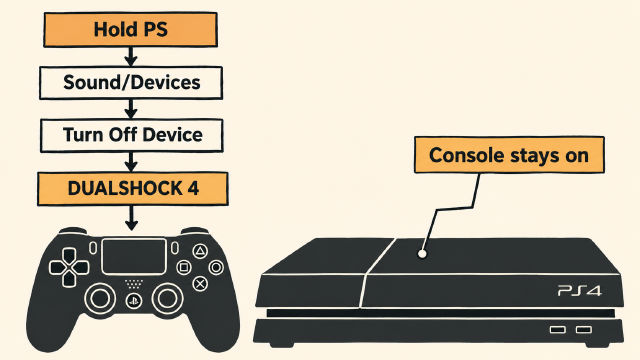
How to Turn Off PS4 Controller Without Turning Off Your Console
Learn how to turn off PS4 controller through Sound/Devices while leaving your console running, plus Sony’s PS-button guidance for other devices.
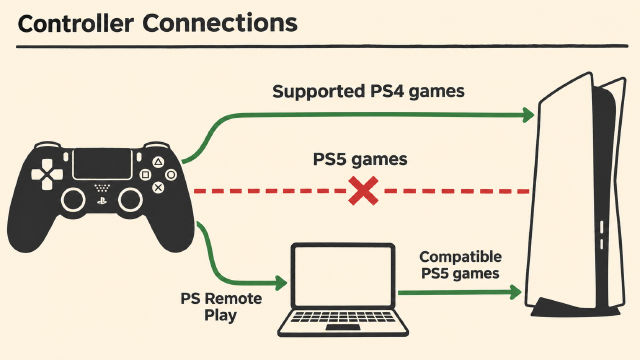
Can You Use PS4 Controller on PS5? Game Versions and Remote Play
You can use a PS4 controller on PS5 for supported PS4 games. Learn the PS5 game restriction, pairing steps, and the separate Remote Play option.
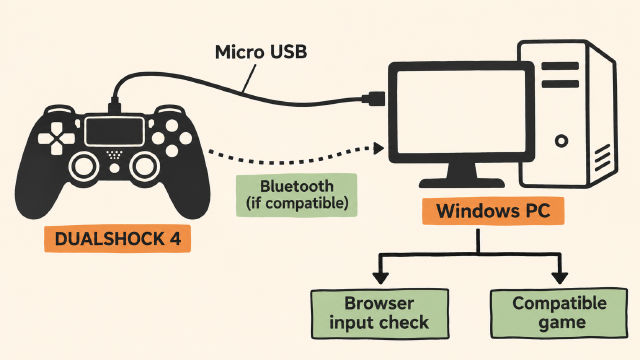
How to Connect PS4 Controller to PC on Windows
Learn how to connect PS4 controller to PC on Windows with Sony's USB guidance, conditional Bluetooth pairing steps and a browser input check.