How to Reset PS5 Controller and Reconnect Your DualSense
Reset PS5 controller using Sony’s rear-button procedure, reconnect your DualSense by USB, and find the next step if problems persist.
On this page
If you’re experiencing issues connecting your DualSense controller, you may need to reset your PS5 controller.
If the console instructions provided by Sony don’t work, or if the connection issue persists even after following their steps, try resetting your controller. If you still have trouble, then reach out to Sony’s support channels.
Resetting a DualSense wireless controller can help resolve connection problems with your PlayStation 5 (PS5) console. While this isn’t required for pairing, it can be helpful in troubleshooting if your DualSense is failing to connect or respond as expected.
How to Reset Your DualSense Controller
Sony recommends that you turn off your PS5 before disconnecting your controller from the console using an official USB cable. To perform a reset on your DualSense controller, look for a small hole located on the back of your controller, next to the Sony® logo. Inside of this hole lies a recessed button known as the “reset” button.
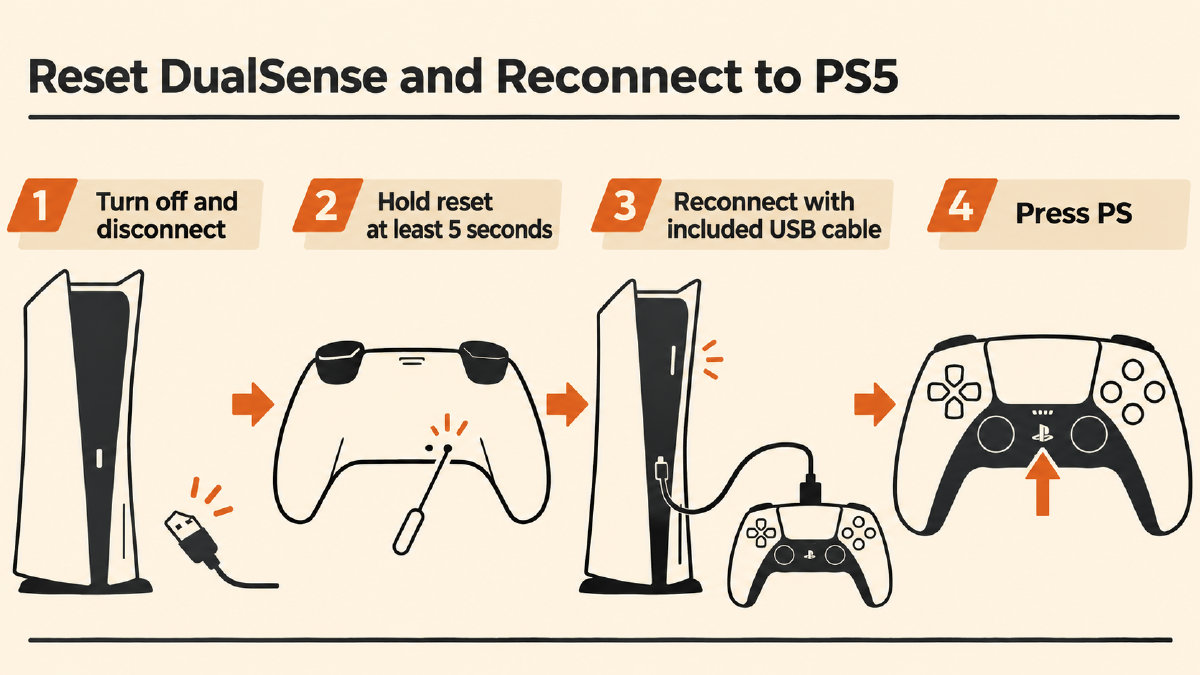
To locate and press the recessed button, insert a pin or similar tool into the opening, then press and hold the button for at least 5 seconds. This will begin the process of resetting your controller. Keep in mind that the pin or similar tool needed to press the recessed button is not included.
Reconnect and Pair Your Controller
Once you’ve completed the reset, reconnect the controller via its official USB cable to the console. However, unlike earlier, you should now power up your console. Once you connect your controller, press the PS button to pair it to the console.
When your controller is successfully paired with the console, the light bar on the controller will blink, and then the player indicator will light up. When you press the PS button, a color is assigned to each player. If you don’t see any blinking light, or the indicator doesn’t illuminate, then check the conditions under which your controller connects again.
If Your Controller Still Fails to Connect
If your DualSense controller still fails to connect or respond, there might be another underlying issue. For instance, ensure that your console is powered on, and that you’re using the included USB cable to connect your DualSense controller to your PS5. Finally, check that you’ve pressed the PS button on your controller. If all of these conditions are met and your controller still fails to connect, then your console’s system software might be outdated. Update the system software to the latest available version; if you cannot access your console due to ongoing issues, contact Sony for further assistance.
If you’re still having trouble, it’s possible that your controller has a defect. You should contact Sony for issue-specific support. If your issue continues after resetting, you can use the PlayStation Repairs diagnostic tool to help identify the problem.
Sources
Related controller guides
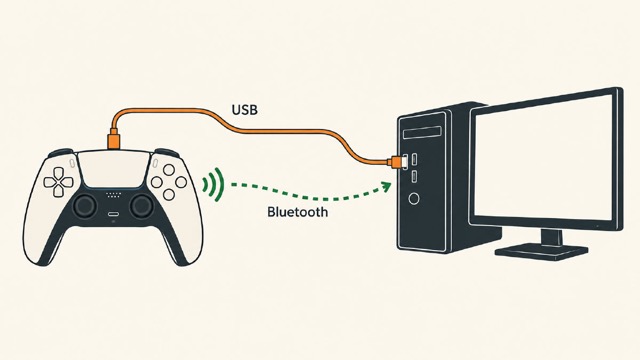
How to Connect PS5 Controller to PC on Windows: USB or Bluetooth
Learn how to connect PS5 controller to PC on Windows using USB or Bluetooth, check browser inputs, and understand game-dependent feature limits.
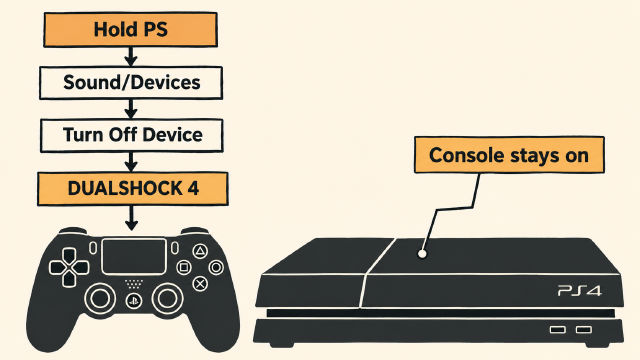
How to Turn Off PS4 Controller Without Turning Off Your Console
Learn how to turn off PS4 controller through Sound/Devices while leaving your console running, plus Sony’s PS-button guidance for other devices.
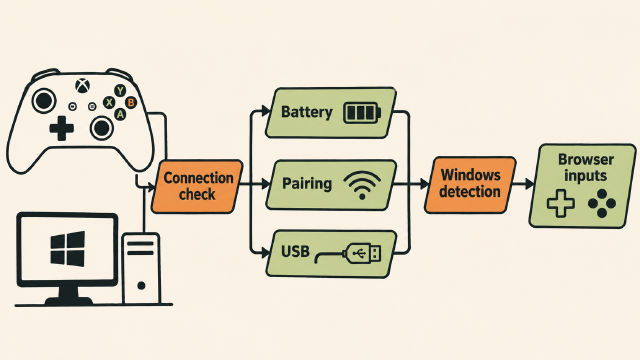
Why Is My Xbox Controller Blinking? PC Connection Checks
Why is my Xbox controller blinking on PC? Check pairing context, battery power and USB connections, then confirm Windows detection before browser inputs.