How to Fix Stick Drift on PS5 Controller: What to Check
Learn how to fix stick drift on PS5 controller with documented reset and update checks, deadzone context, and guidance on when to seek support.
On this page
Stick drift can be annoying, but you don’t have to accept it.
If the left and right sticks of your DualSense controller are drifting, the first thing to do is see if other players report a similar issue. Try another game to see if the same movement appears with both sticks released, and check the affected game’s deadzone setting if one is available. Released-stick movement across different games is common. A variety of settings and features can adjust how the controller feels. Some even allow for a deadzone setting that suppresses small inputs in the center. However, an available deadzone setting doesn’t establish that the stick is “repaired,” nor does it confirm the condition of the repaired controller. In fact, released-stick movement may appear identical in all affected game titles.
The problem
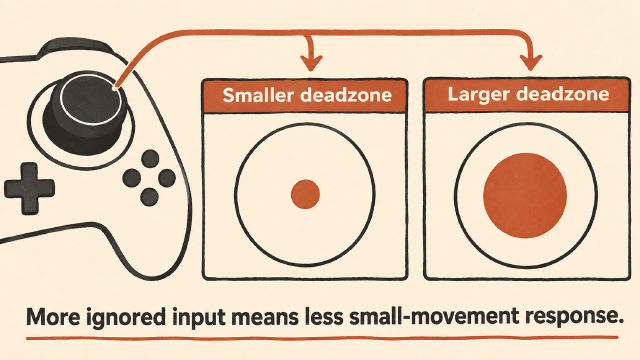
An affected game’s deadzone setting — if one is available at all — might be able to suppress or prevent the small central inputs from being recognized by the console as an input. In other words, the deadzone essentially defines the region near the stick’s center where inputs will be treated as zero.
This deadzone shape (and its response) may vary per game and/or library, with different shapes and responses than what appears in another title. You’ll find that some games use a round or circular shape; others may treat each direction separately (like four quadrants), while others simply define a value (a number). While this seems consistent in most cases, I’ve noticed a situation where the same displayed deadzone number might actually behave differently from game-to-game, depending on the library, or even the individual title.
However, this should be considered observations rather than evidence that a controller is failing or damaged. The software response is something that the developers have adjusted, so differences between them could simply reflect that difference rather than any change in the health of the hardware. There may also be an alternative explanation — like whether a developer has adjusted the sensitivity based upon some user preferences.
You might think that adjusting the deadzone would help. Unfortunately, it’s not possible to know for sure what deadzone adjustment is best. It’s unclear what values Sony recommends or what values would work best. After all, the same game may respond differently if there’s an internal variation within the game itself.
In short, while some game libraries allow for a deadzone configuration, you shouldn’t expect that doing so would solve the problem entirely. If anything, these settings are simply another way to tune your own experience. But they won’t solve the underlying issue unless it’s truly a software issue that requires fixing.
Optional browser observation
One thing I’ve found useful is using the optional web browser observation as a repeatable comparison before and after trying to troubleshoot the issue. For example, you can take note of how much offset is reported by a browser. This isn’t an established diagnostic tool, but it allows for a direct comparison of reported offset against how the game behaves. I also believe that this is an opportunity for physical diagnosis.
To check, head to /stick-drift-test. This provides a live controller-input view and a 10-second test of the offset reported by your browser. If you want to compare before and after, just leave the browser window open while taking notes. Otherwise, move on.
A 10-second observation should be enough. You need to ensure that the following conditions are met:
Standard mapping: The drift test requires a standard mapping and at least four valid axes to label the left and right sticks. Alternatively, raw axes in the general tester, without assuming that any particular axis corresponds to a stick. (See the page’s instructions.)
Stable surface: Place the controller on a stable, flat surface and let go of both sticks.
Both sticks released: Before sampling, release both sticks.
Browser tab visible: The browser tab must remain visible during sampling.
Same connection: Ensure the same connection is used. Otherwise, you’re comparing apples to oranges.
Reference value: A reference value of 0.05 is given, which can be compared to the results to serve as a baseline.
Changes to reference value: You can change the reference value, but keep it the same for later comparisons. The page explains that no filtering or calibration is applied.
Above-reference result: An above-reference result alone isn’t necessarily an indicator of a problem, because the measured offset alone can’t tell you whether a game will behave differently.
Browser readings: Browser readings are an opportunity to identify what might be causing the issue, but the readings alone aren’t enough to establish that the problem is physical.
What else to try?
There are documented procedures to reset the DualSense Wireless Controller, but they aren’t my personal recommendations for troubleshooting. That said, you should probably try these methods before moving on.
Resetting the controller
Sony has a couple of documented procedures that you can try. Obviously, you don’t have to try these steps yourself. Just follow the procedure below, then go through the process of resetting your controller again to verify the original symptom.
Documented procedures
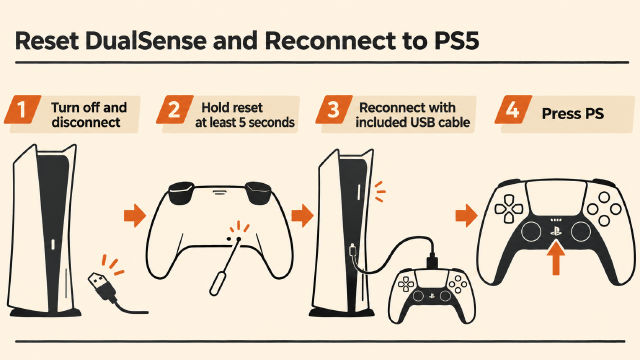
According to the information on the official PS5 website, the following steps apply to a standard DualSense Wireless Controller:
Turn off the PS5.
Disconnect the controller from the USB cable.
Press and hold the rear reset button inside the small hole next to the Sony logo on the controller.
Use a pin or similar pointed tool to press the button. You’ll feel the controller “click” once it resets.
Hold the button for at least 5 seconds.
Reconnect the controller to the PS5 using the official included USB cable.
Press the PS button on the controller to turn it on.
Update the system software
If the problem persists, update the PS5’s system software. According to the documentation, controller device software updates are included with PS5 system software updates; pair the controller and follow the on-screen instructions to update it. To start the controller update manually, navigate to Settings > Accessories > Controller (General) > DualSense Wireless Controller Device Software.
After completing these checks, make sure that you still see the unwanted movement.
If the above fixes don’t resolve the issue, it’s possible that the standard DualSense is suffering from physical wear. However, you should keep in mind that there are specific troubleshooting steps designed for the DualSense Edge.
DualSense troubleshooting
If you’re experiencing stick drift on the PS5, refer to the Sony troubleshooting page. If you don’t see improvement after resetting the controller and updating the system software, select “Button or analog stick issue” to submit an issue to support. Note that Sony doesn’t explicitly state that your part failed or is defective; rather, it assesses your support needs. Don’t assume that the readings you collected via the /stick-drift-test site indicate that a part failed. The issue might be related to your specific game library, which is outside the scope of our discussion here.
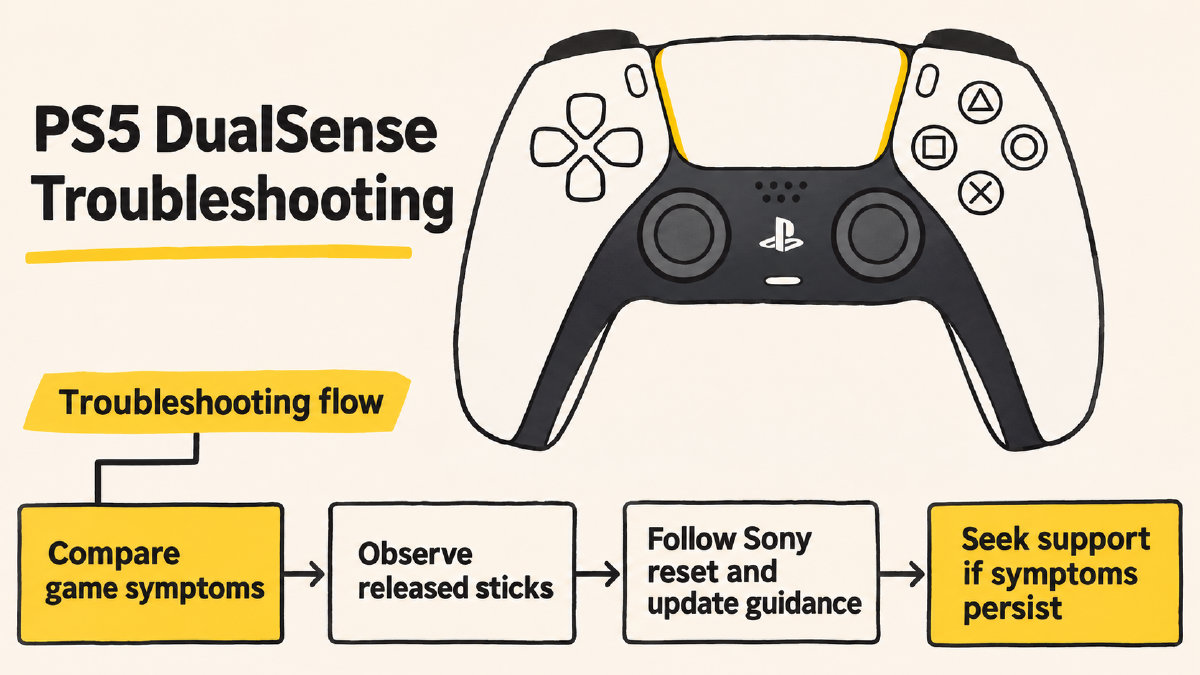
The Edge
Sony-documented stick-module replacement procedure applies to the PlayStation 5 DualSense Edge. As such, the procedure is quite distinct from the standard DualSense guidance.
Sources
Related controller guides
How to Get Rid of Stick Drift: Checks Before Repair
Learn how to get rid of stick drift symptoms with game deadzone adjustments, compare resting stick readings, and decide when to seek repair guidance.
How to Reset PS5 Controller and Reconnect Your DualSense
Reset PS5 controller using Sony’s rear-button procedure, reconnect your DualSense by USB, and find the next step if problems persist.
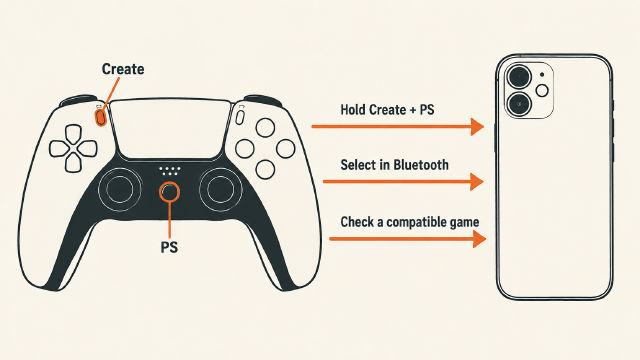
How to Connect PS5 Controller to iPhone via Bluetooth
Learn how to connect PS5 controller to iPhone via Bluetooth, check iOS compatibility, and troubleshoot pairing or missing game inputs.