How to Get Rid of Stick Drift: Checks Before Repair
Learn how to get rid of stick drift symptoms with game deadzone adjustments, compare resting stick readings, and decide when to seek repair guidance.
On this page
If you are experiencing unwanted movement across all games, or in specific ones, the problem is likely due to something like a worn stick. However, before attempting to repair or replace the stick, there may be options for adjustments that can help mitigate this issue. This article provides steps on how to get rid of stick drift, along with comparisons to check your controller’s behavior.
Compare Unwanted Movement Across Games
To begin, we’ll look at some examples. In this case, unwanted movement was experienced across two games (the first one being a game known to be affected by drift and the second a similar game which had not been previously reported as drifting). When both sticks were released (with no deliberate input), it became clear that both controllers were reporting offset values from the center position. The browser indicated an offset of about 0.324, which was observed over a ten-second period.
This offset, combined with the deadzone—defined as the area around the center of the pad where the input counts as zero—can result in unwanted inputs. Different games may choose to ignore different amounts of input within the deadzone. For example, if resting offset is below the deadzone for a given game, then releasing the pad results in no movement. If the resting offset is above the deadzone, however, movement appears. It might appear that the game has ignored the movement. But, what if it isn’t? There are options to reduce the amount of small movement a game accepts before considering it “valid” input.
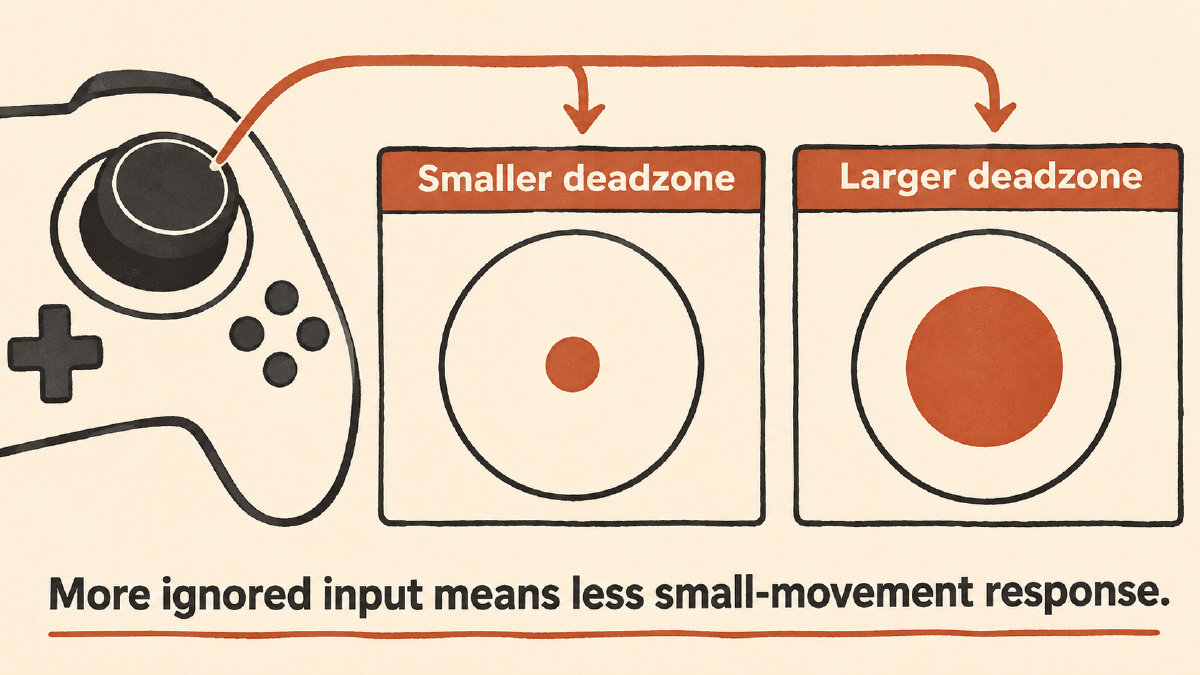
The gradual adjustment of the deadzone offers an approach to suppressing unwanted movement, but also reduces the responsiveness of the stick. You can try to increase the deadzone so that more small movements on the stick are ignored. But this might impact other controls, such as aiming and slow walking, where fine control is needed. Unfortunately, the browser reports axis values that are not directly converted into the scale used by an unspecified game. Whether this setting will be useful depends on how your game responds to input and whether the game is able to respond to very small changes.
Repeat the Comparison After Each Adjustment
After adjusting each individual setting (i.e., the stick deadzone), you should repeat the same comparison between games. Record the game and setting you changed, then proceed to release and move in the same fashion again. If the setting change is effective, the unwanted movement should no longer appear after repeated releases. If deliberate small movements become less responsive, the adjustment might be too aggressive. By repeating this process, you may capture any intermittent behavior that could be missed when only checking a single observation.
It is important to note that the following is an example of symptom suppression rather than true repair. Unresolved movement or unacceptable fine control may necessitate further guidance and support from Sony or another site that supports your controller. Keep in mind that while software adjustments can help, they cannot always repair hardware wear.
Sources
Related controller guides
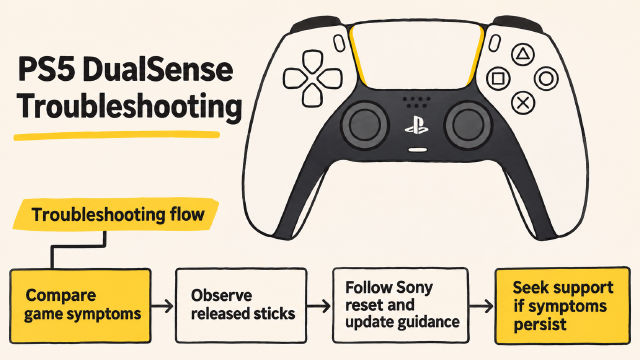
How to Fix Stick Drift on PS5 Controller: What to Check
Learn how to fix stick drift on PS5 controller with documented reset and update checks, deadzone context, and guidance on when to seek support.